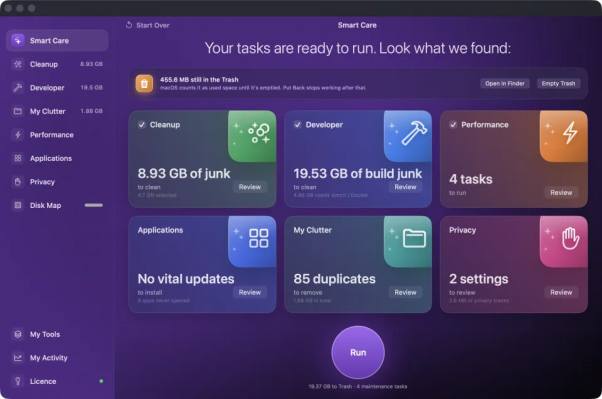
Open storage settings, and one gray bar sits there taking up more room than photos and apps combined. System Data. No folder to open, no list of what sits inside it. Good Mac disk space management software fills that gap by naming the files behind the bar instead of leaving you guessing.
The Gray Bar Nobody Can Open
What That Storage Category Actually Holds: System Data is a bucket, not a folder. macOS drops anything it cannot file under photos, music or documents into it. Caches, logs, iOS device backups, old installers, application support material. Mac disk space management software reads those locations directly and reports what sits in each one, with the size attached.
Why the Number Keeps Moving: Storage math on a Mac never sits still. Refresh the screen an hour later and the figure changes. Caches rebuild. Logs grow. Anyone comparing the best Mac cleaner alternatives should check whether a tool rescans on demand or serves a stale snapshot, because a number from last week helps nobody.
From One Gray Block to Real File Paths
Seeing the Path before Anything Moves: A percentage tells you nothing about which file to remove. A full path does. Scanning the whole home folder, hidden directories included, pulls the file system detail that storage settings hide, so every entry carries a location you can check in Finder first. Trust follows evidence, not a progress bar.
Where the Biggest Wins Hide: Some categories quietly outgrow everything else. iOS backups and abandoned installer files swallow tens of gigabytes without announcing themselves. On a Mac with a small solid state drive, that hurts. Developer machines carry more again, with dependency folders, package caches and simulators stacked where the storage screen never counts them separately.
Rules That Keep a Cleanup Reversible
Recoverable Beats Permanent Every Time: Mistakes happen during a cleanup, and the difference between an annoying evening and a lost project comes down to where files land. Sensible Mac disk space management software moves items to the Trash rather than deleting them outright, which leaves a window to pull something back. Recovery should never depend on luck.
What Should Never Be on the List: Deleting the wrong system file can break an app or worse. Kernel caches, swap files, sleep images and whole app containers belong where macOS put them. Weighing up the best Mac cleaner alternatives means checking what each one refuses to touch, because restraint matters more than a bigger reclaim figure.
- Caches rebuild on their own, so clearing them costs you a slower first launch and little else
- Old iOS backups. Check the date before removing one
- Installer files left behind after an update serve no purpose
- Application support folders from apps you deleted months ago still sit there taking up room
- Leave anything you cannot identify
Defaults That Protect You: Anything a tool only inferred should arrive unticked, waiting for a decision rather than assuming one. Guesses go wrong. A scan that ticks everything by default pushes you toward a single confirm button, and that is how people lose files they meant to keep. Admin prompts and background helpers deserve the same suspicion.
Turn That Gray Bar into a List You Control
Storage settings will keep showing one vague block, and that is unlikely to change. A scan that names paths, sizes and dates puts the decision back with you. Run one on your own Mac, look at what comes back, then decide what deserves to stay. A free trial with every feature unlocked makes that easy to test.
